
How to connect Clover to PrepFlow
- In your Clover dashboard, open Setup, then API Tokens, and create a token for PrepFlow. Note your merchant ID.
- On the PrepFlow setup page, add Clover as your POS, enter the merchant ID and token, and set your opening hours.
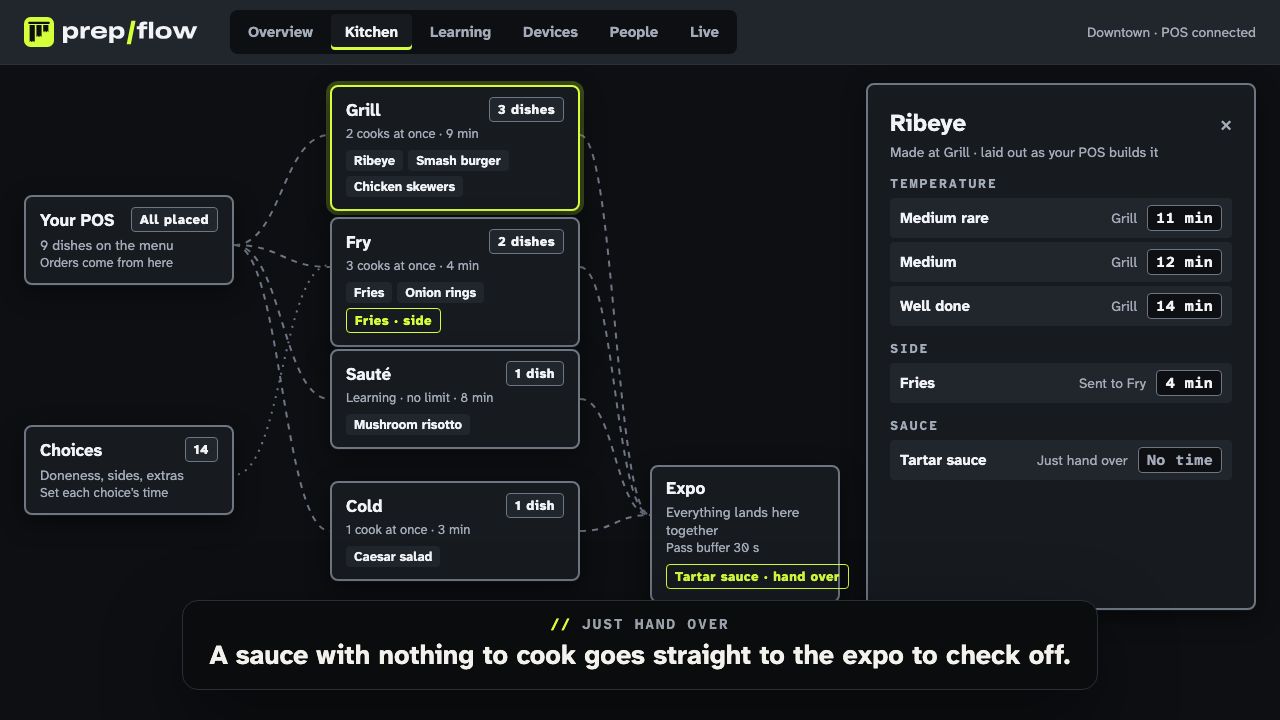
- Load your menu. Clover items and modifier groups appear on the kitchen canvas, with your Clover labels suggesting a station; drop each dish where it is cooked.
- Enroll your station and expo screens with a code, on any iPad, Android tablet or browser, and ring in a test order.
What comes through from Clover
PrepFlow reads each Clover order with its line items, modifiers and order type. It recognizes the order types restaurants use (Dine In, For Here, To Go, Pickup, Delivery, Curb Side), so each ticket is marked dine-in, takeout or delivery on every screen; an unknown type is shown as dine-in, never lost.
Your Clover labels, the tags you use to send dishes to the kitchen or bar printer, become the first suggestion for each dish’s station on the kitchen canvas.
What PrepFlow adds on top
Clover’s kitchen printing sends every item at once. PrepFlow plans each item instead: the slowest dish starts first and the rest are held until their minute comes, so the order lands together. If a cook starts late, every waiting item moves. Doneness, sides cooked at another station and dishes that move between stations each get their own time, and those times are learned from your cooks’ Start and Done taps.
Pricing
PrepFlow has a $0 monthly subscription: you pay per order, and less per order as you grow, with unlimited screens. There is no extra charge for the Clover connection.
Clover is a trademark of its owner, and PrepFlow is not affiliated with it.
Questions
How quickly do Clover orders reach the kitchen?
PrepFlow checks Clover for new and changed orders about once a minute while you are open, so a ticket reaches the screens within about a minute of being rung in. The plan counts from when the order arrived, and every item is still timed to land together.
Do I need to install a Clover app?
No. PrepFlow connects with a merchant ID and an API token you create in your Clover dashboard, so there is nothing to install on your Clover devices.
Does PrepFlow see card or payment data?
No. PrepFlow only asks Clover for orders, their items and modifiers, and your menu. It never requests payment objects, so card data never reaches PrepFlow.
What happens when a line is removed from a Clover order?
A removed line is treated as a void: it disappears from the kitchen screens and the rest of the order is re-paced.